Cloud Virtual Devices

You can view and access your Genymotion SaaS Cloud instances from Genymotion launcher.
In the Devices section, navigate to the CLOUD tab:
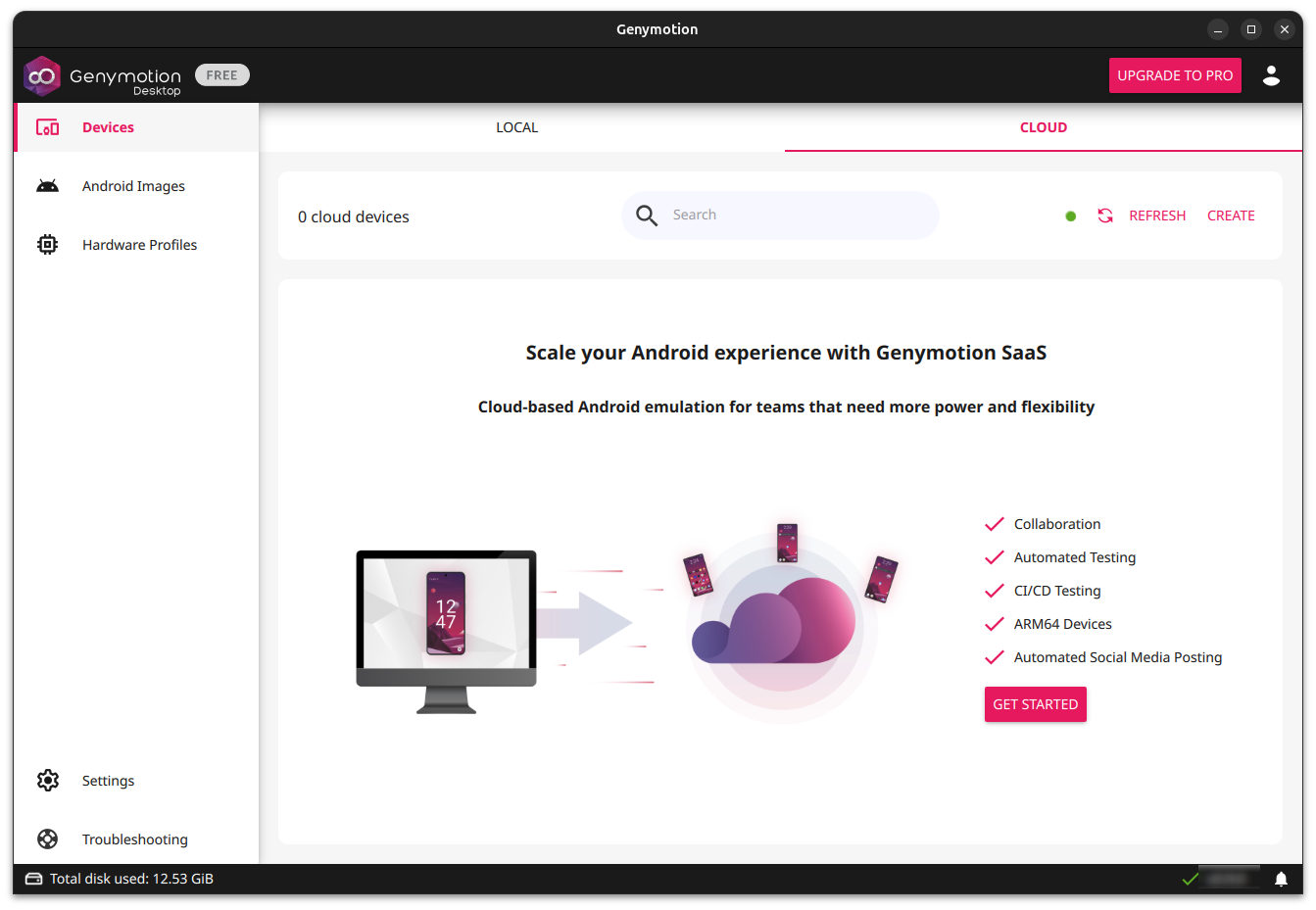
Click GET STARTED to connect Genymotion SaaS to Genymotion Desktop.
If you don't already have a Genymotion SaaS account yet, you can sign up at this point:
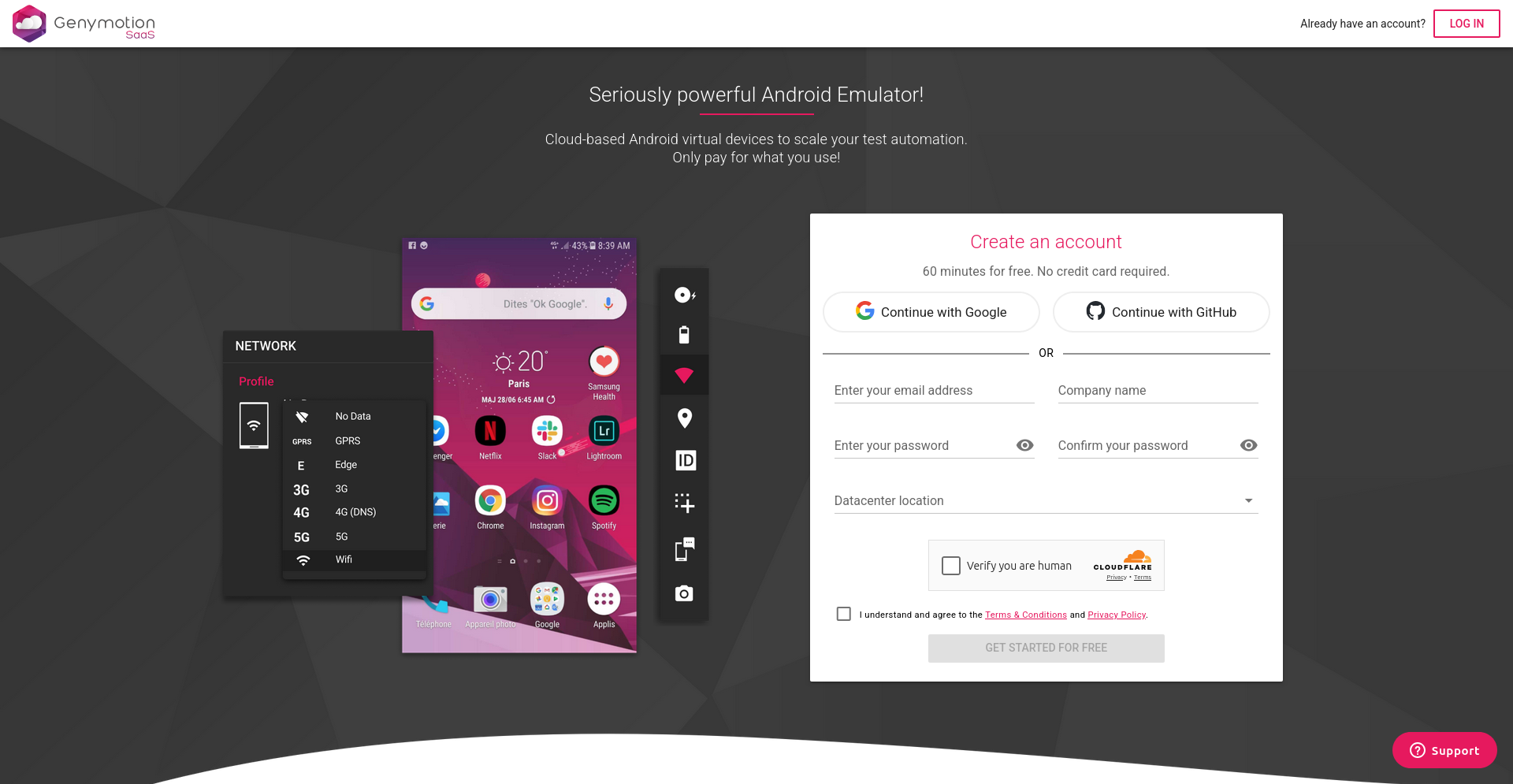
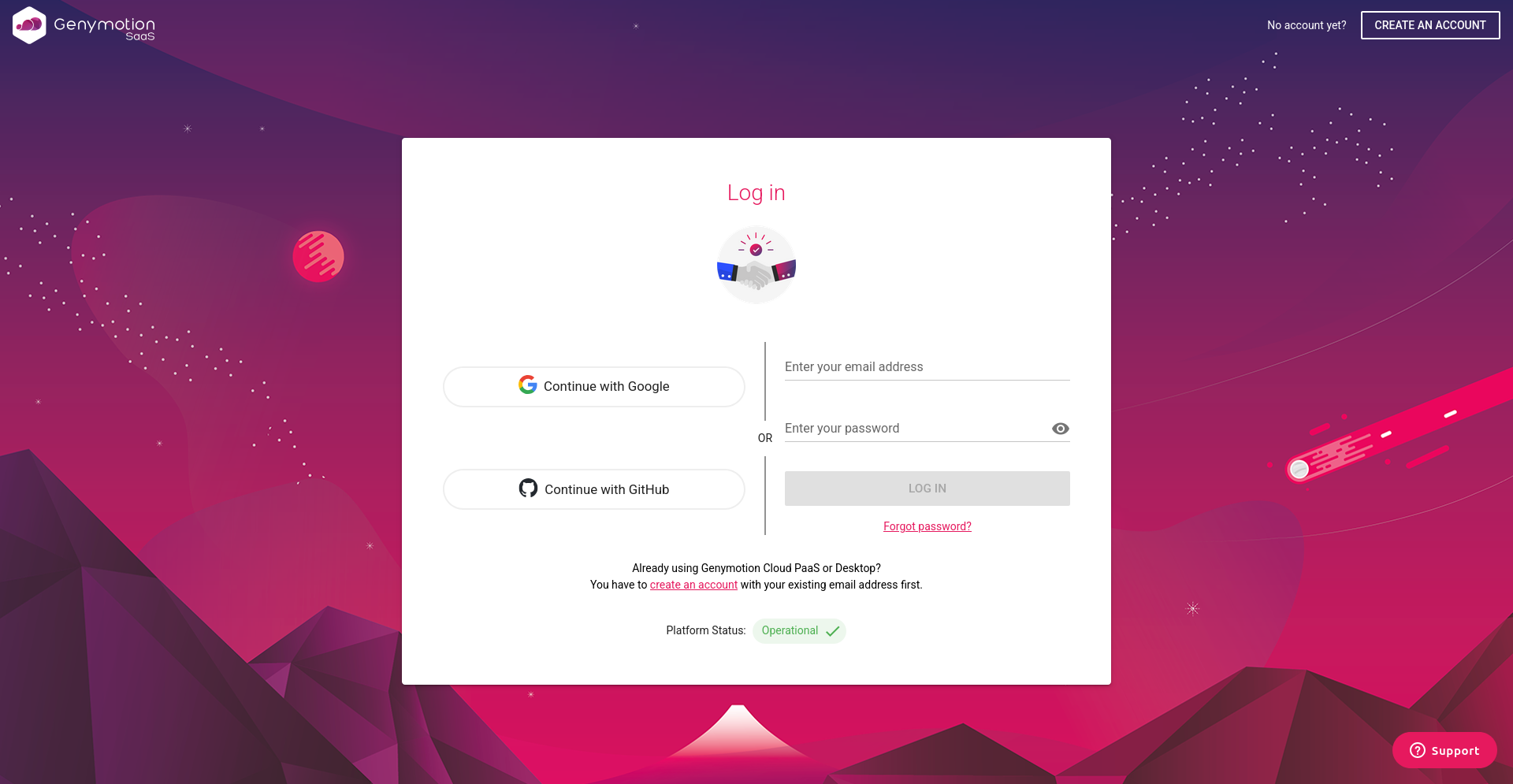
If you already have a Genymotion SaaS account, you can click LOG IN in the upper-right corner on the page, and log in with your credentials or SSO:
Once logged, you should see all your Genymotion SaaS recipes in Genymotion Desktop Cloud devices dashboard:
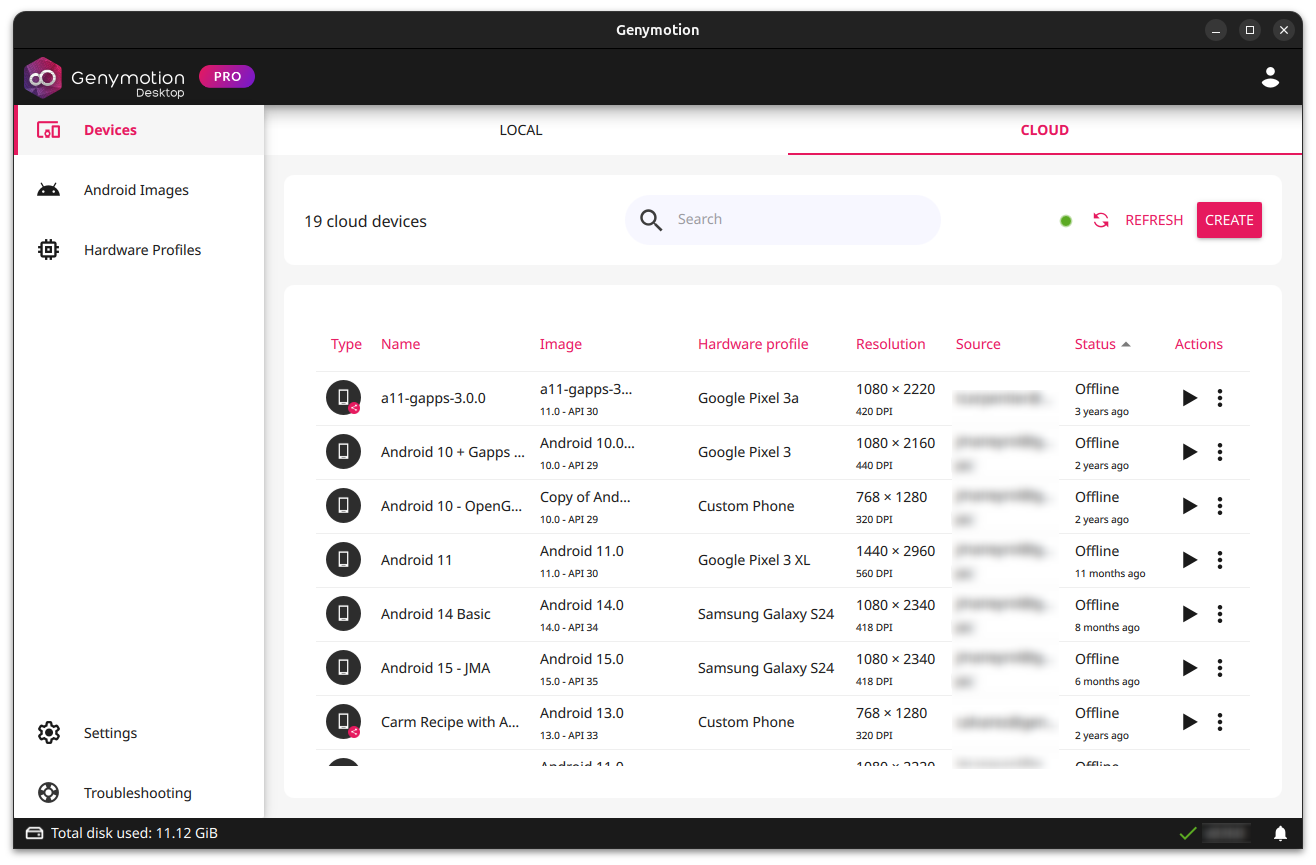
Click REFRESH to refresh the list of available recipes.
Create a New Cloud Recipe
To create a recipe, can click CREATE. This will redirect you to your Genymotion SaaS dashboard:
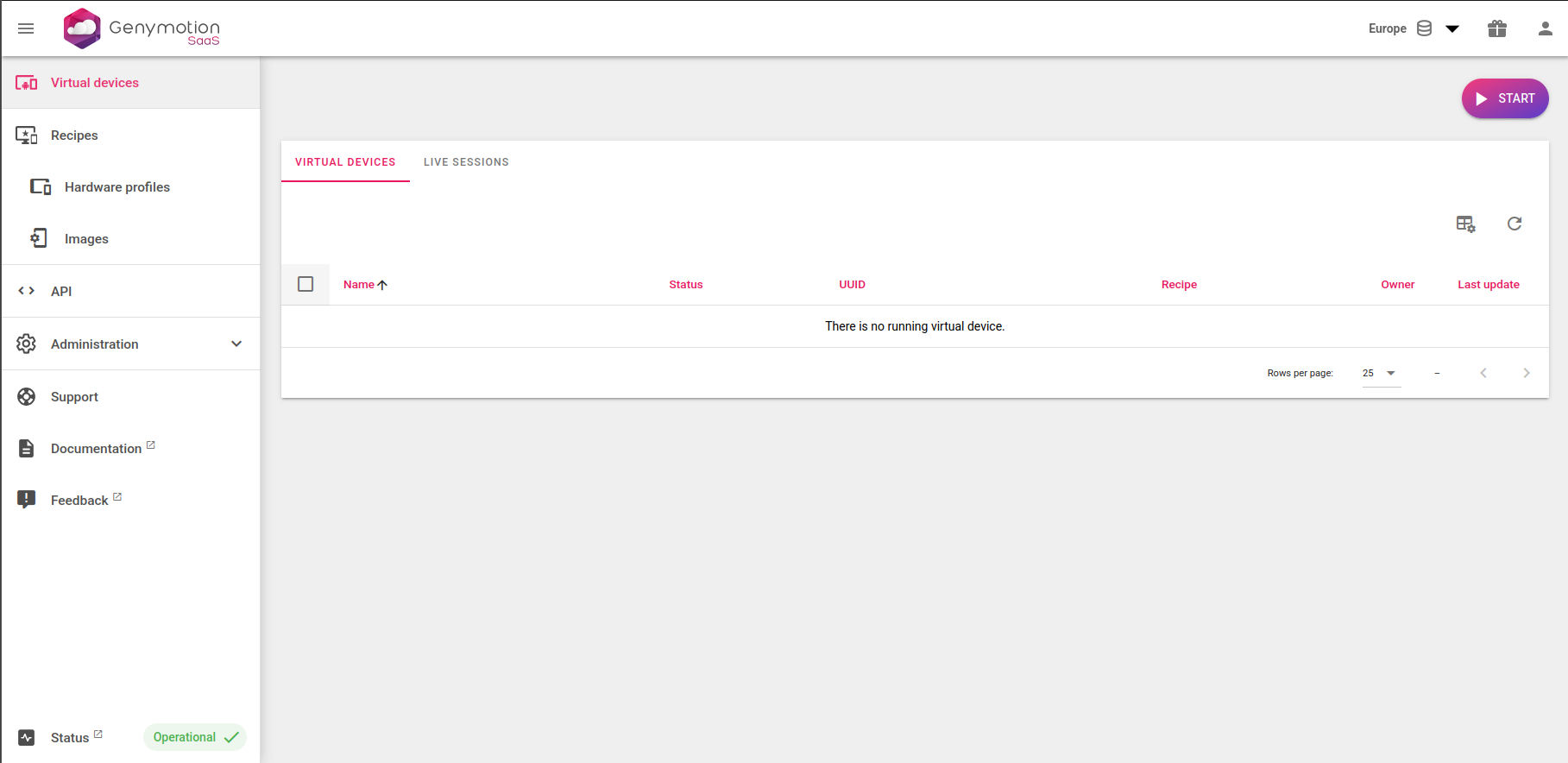
Then, follow the instructions from Genymotion SaaS user guide to create a new recipe. When done, your newly created recipe(s) will then appear in the Cloud devices dashboard in Genymotion Desktop:
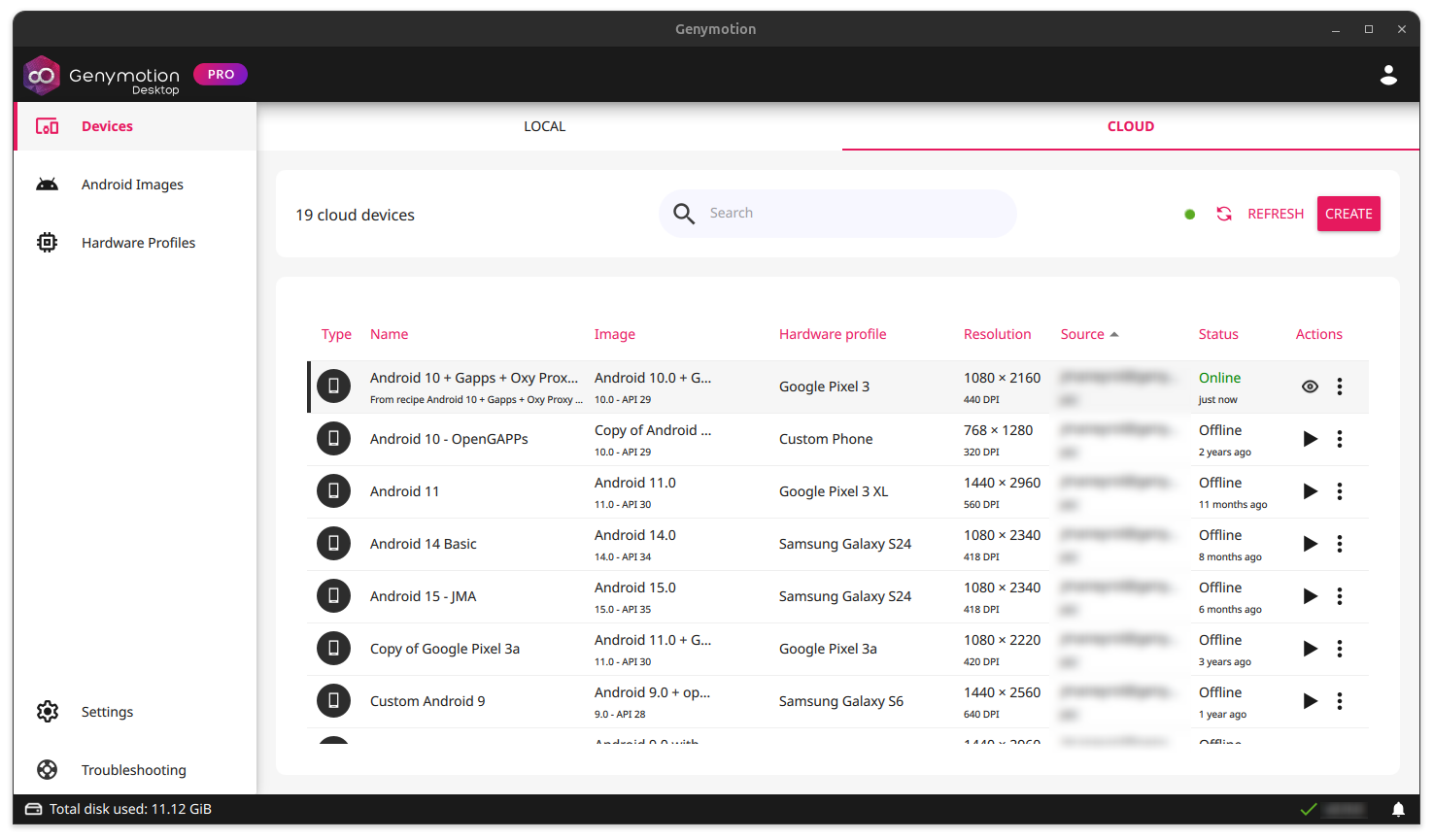
If you do not wish to create a recipe yet, you can also directly start an instance from the Genymotion SaaS dashboard; it will then appear Online in the Cloud devices dashboard. Note that you will have to save the instance as a recipe if you wish to reuse it later.
Start an instance from a Cloud Recipe
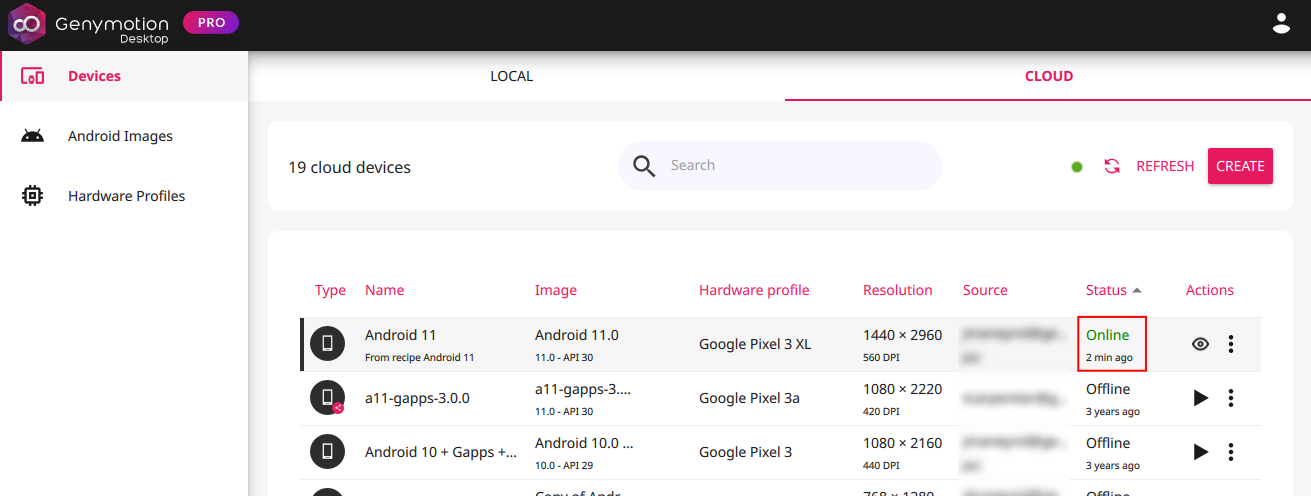
Simply click , or > "Start instance", next to the recipe you wish to use to start a new Cloud instance with it. When ready, the instance will appear "Online" in the dashboard:
Access a Cloud Instance through Genymotion Desktop
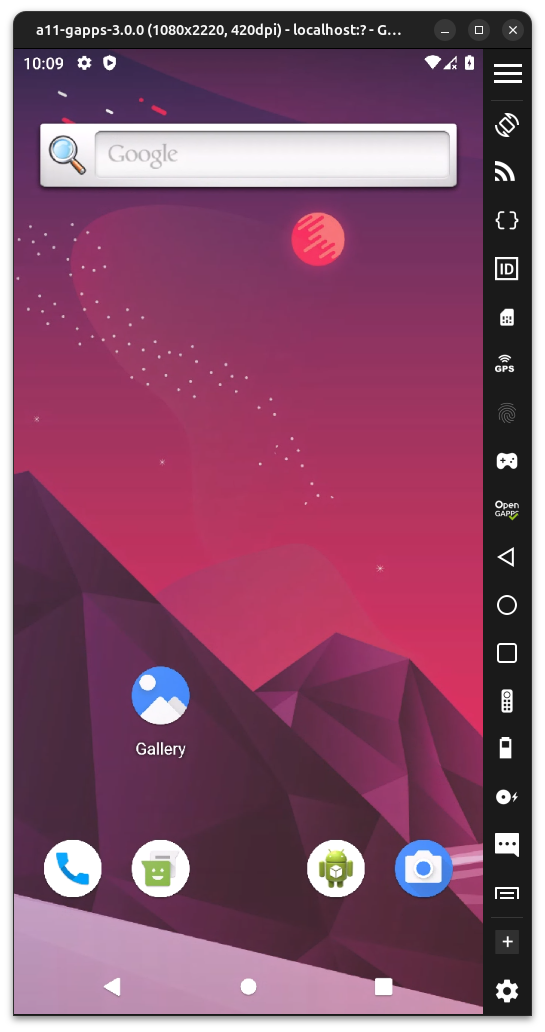
Once your instance has started, or if you already have running instances, click to open the cloud instance display in Genymotion Desktop:
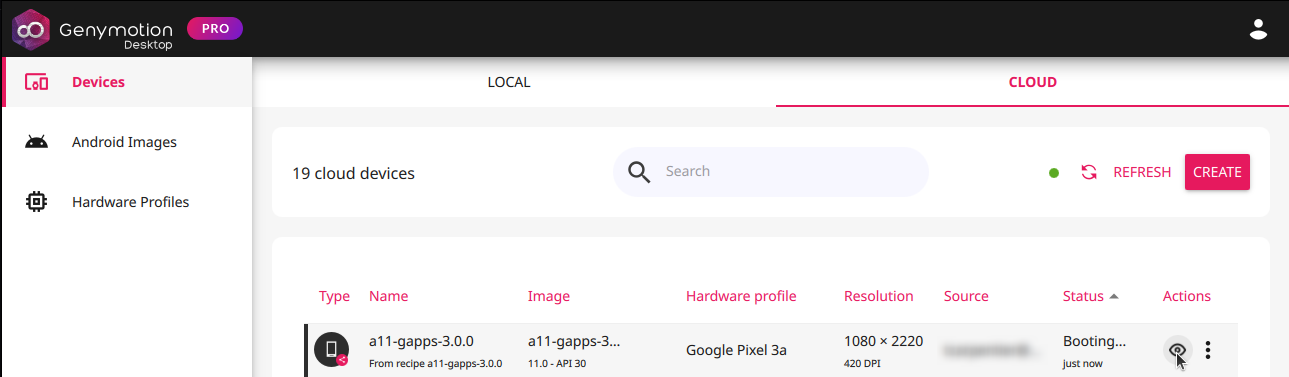
You can then operate your cloud instance like a local virtual device:
Other Actions
Click to open the actions menu:
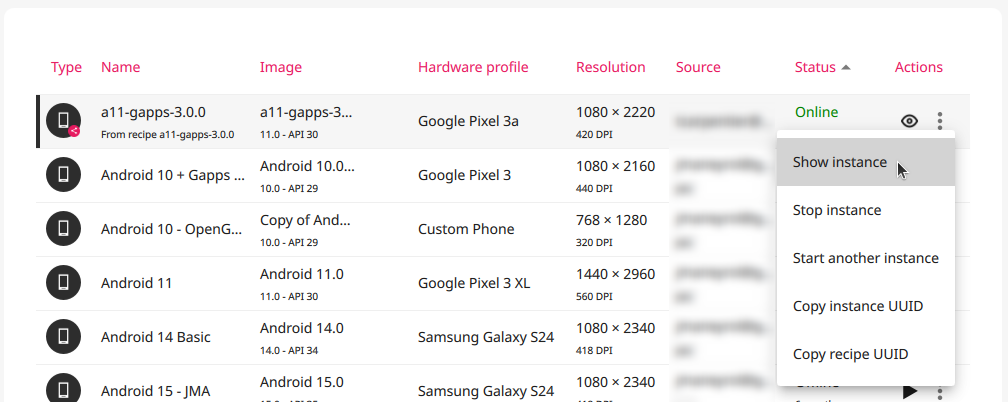
Then, select an action:
- Show instance: open the instance display in Genymotion, similar to the icon.
- Stop instance: stop the selected instance if it is running.
-
Start another instance: start another instance from the same recipe as the running instance.
This action, will not stop the running instance!
-
Copy instance UUID: copy the instance UUID to clipboard.
- Copy recipe UUID: copy the recipe UUID to clipboard.
Instance and recipe UUID are generally used to automate operations with gmsaas CLI tool.